
SAP Banking
DOCS FOR SAP BankingCommands:
SAP BANKINGProcess Modeling:
Section titled “Process Modeling:”LockBox
Section titled “LockBox”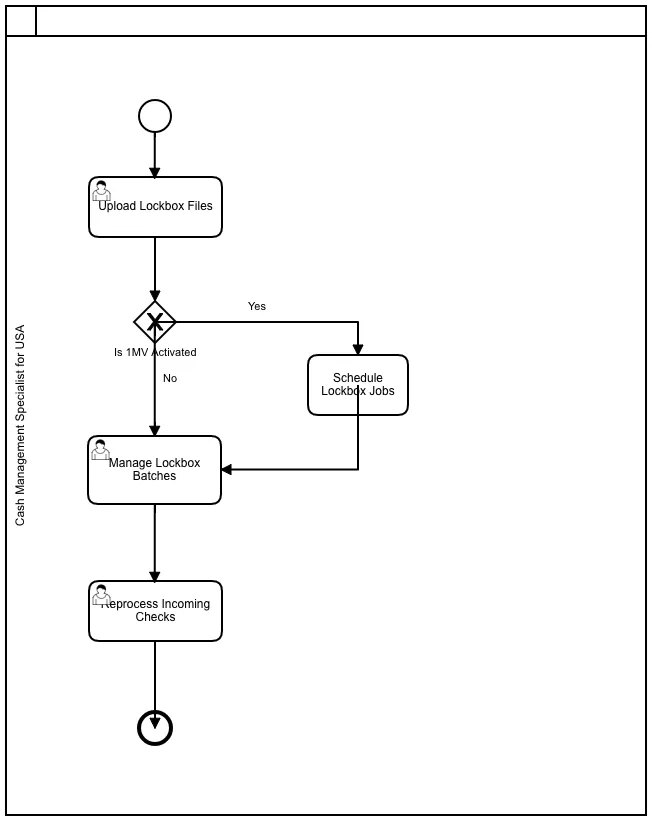
SAP Best Practices Banking Account Structure:
Section titled “SAP Best Practices Banking Account Structure:”Show extracted text
1/19/2021https://help.sap.com/http.svc/dynamicpdfcontentpreview?deliverable_id=23188577&topics=bbfa643a86094e3e9dba8f6b49f… 2/12411001000 - Bank 1 - Bank (Main) AccountG/L Account Number(I_SAKNR)11001000G/L Acct Long Text (SKAT) Bank 1 - Bank (Main) AccountG/L Account Group FIN.Balance/ P&L Account BalanceAccount Category Cash/Bank managementAccount Purpose Detailed account structure for reference bank 1, to be mapped by customerAccount Hierarchy Level ASSETS | CURRENT ASSETS | CASH AND CASH EQUIVALENTS | BankUsed in Conguration or MasterDataXWhere Used in the GlobalAccount Determination orMaster DataBank Master Data / Banking account determination / Bank Subaccounts for Bill of Exchange Usage /Cash - Assign Flow Types to G/L AccountsAccount Usage In the documentation group for Bank, the following accounts are described:G/L Account Number (I_SAKNR) G/L Acct Long Text (SKAT)11001000 Bank 1 - Bank (Main) Account11001010 Bank 1 - Cash Payment11001020 Bank 1 - Bank Transfer(Domestic/SEPA/Foreign)11001030 Bank 1 - Other Interim Transfers11001040 Bank 1 - Direct Debit11001045 Bank 1 - Returns11001050 Bank 1 - Checks Out11001055 Bank 1 - BoE Out11001057 Bank 1 - VCard Out11001060 Bank 1 - Checks In11001065 Bank 1 - BoE Collection11001066 Bank 1 - BoE Discounting11001067 Bank 1 - BoE Forfeiting11001070 Bank 1 - Check Clearing Account11001080 Bank 1 - Cash Receipt11001090 Bank 1 - Technical Account for BankStatement11001099 Bank 1 - Foreign Currency Adjustment11001100 Bank 1 - Bank (Main) Account ForeignCurrency11001200 Bank 1 - Bank (Lockbox) Account1/19/2021https://help.sap.com/http.svc/dynamicpdfcontentpreview?deliverable_id=23188577&topics=bbfa643a86094e3e9dba8f6b49f… 3/124G/L Account Number (I_SAKNR) G/L Acct Long Text (SKAT)11002000 Bank 2 - Bank (Main) Account11002010 Bank 2 - Cash Payment11002020 Bank 2 - Bank Transfer(Domestic/SEPA/Foreign)11002030 Bank 2 - Other Interim Transfers11002040 Bank 2 - Direct Debit11002045 Bank 2 - Returns11002050 Bank 2 - Checks Out11002055 Bank 2 - BoE Out11002060 Bank 2 - Checks In11002065 Bank 2 - BoE Collection11002066 Bank 2 - BoE Discounting11002070 Bank 2 - Check Clearing Account11002080 Bank 2 - Cash Receipt11002090 Bank 2 - Technical Account for BankStatement11002099 Bank 2 - Foreign Currency Adjustment11008000 Bank 3 - Digital Payments Acquirer Bank11008030 Bank 3 - Digital Payments TransferAccount11008070 Bank 3 - Digital Payments Acquirer Clrng(Stlmnt)11008099 Bank 3 - Foreign Currency AdjustmentBank accounting provides two main bank accounts which you can tailor for each currency and for eachaccount. Clearing accounts (bank subaccount) are per processing type on a lower level.Only transactions which are active according to the bank statement are posted in (actual) bankaccounts, they should be managed on an open item basis.The conguration of bank accounts determines how account transactions are allocated in cashpositions:Open item management in clearing/subaccountsLine item display in bank balance sheet accounts and bank clearing accountsSort keyPlanning level is copied to the document from the master record; it is an assignmentcharacteriztic and qualies account movement.Objectives:Accounts can be reconciled at any timeAccounts can be dened and managed in the local or a foreign currencyAccounts can be managed by value date1/19/2021https://help.sap.com/http.svc/dynamicpdfcontentpreview?deliverable_id=23188577&topics=bbfa643a86094e3e9dba8f6b49f… 4/124Interest can be calculatedLine item analysis possibleContingent liabilities can be monitoredItems posted automatically using automatic payment transactionsAutomatic breakdown using electronic banking transactionsProcess Related Information Payment transaction are posted against the clearing accounts using the payment programTest script for J60Process step Payment RunBank statements balance the clearing entries against the bank accountTest script for BFBProcess step Bank statementPosting Examples Payment transactionDebit Credit11001020 - Bank 1 - Bank Transfer2000 EUR7777 Vendor 2000 EURProtability Analysis Attribute: for example, functional area, prot center, land, customer and soonDebit Credit21311010 Accounts Payable - SuppierFinancing VcardCR 11001057 Bank 1 VCard OutBank statementDebit Credit11001000 - Bank 1 - Bank (Main) Account 2000EUR11001020 - Bank 1 - Bank Transfer 2000 EURBank statement clearing account for return process and return lot processingDuring bank statement uploading for returns lot, and return lots posting, the return lot processow will use it.Bank statement uploading:Debit Credit11001000 - Bank 1 - Bank (Main) Account 3000EUR11001045 - Bank 1 - Returns 3000 EURReturn lot process:1/19/2021https://help.sap.com/http.svc/dynamicpdfcontentpreview?deliverable_id=23188577&topics=bbfa643a86094e3e9dba8f6b49f… 5/124Debit Credit11001045 - Bank 1 - Returns3000 EURBusiness Partner11001010 - Bank 1 - Cash PaymentG/L Account Number(I_SAKNR)11001010G/L Acct Long Text (SKAT) Bank 1 - Cash PaymentG/L Account Group FIN.Balance/ P&L Account BalanceAccount Category Cash/Bank managementAccount Purpose Detailed account structure for reference bank 1, to be mapped by customerAccount Hierarchy Level ASSETS | CURRENT ASSETS | CASH AND CASH EQUIVALENTS | BankUsed in Conguration or MasterDataXWhere Used in the GlobalAccount Determination orMaster DataAccount determination for Cash Journal / Acct Determ. for Open Item Exch.Rate Differences / Bankingaccount determination / Demo data for Cash - Dene Default Liquidity Items for G/L AccountsAccount Usage In the documentation group for Bank, the following accounts are described:G/L Account Number (I_SAKNR) G/L Acct Long Text (SKAT)11001000 Bank 1 - Bank (Main) Account11001010 Bank 1 - Cash Payment11001020 Bank 1 - Bank Transfer(Domestic/SEPA/Foreign)11001030 Bank 1 - Other Interim Transfers11001040 Bank 1 - Direct Debit11001045 Bank 1 - Returns11001050 Bank 1 - Checks Out11001055 Bank 1 - BoE Out11001057 Bank 1 - VCard Out11001060 Bank 1 - Checks In11001065 Bank 1 - BoE Collection11001066 Bank 1 - BoE Discounting11001067 Bank 1 - BoE Forfeiting11001070 Bank 1 - Check Clearing Account11001080 Bank 1 - Cash Receipt1/19/2021https://help.sap.com/http.svc/dynamicpdfcontentpreview?deliverable_id=23188577&topics=bbfa643a86094e3e9dba8f6b49f… 6/124G/L Account Number (I_SAKNR) G/L Acct Long Text (SKAT)11001090 Bank 1 - Technical Account for BankStatement11001099 Bank 1 - Foreign Currency Adjustment11001100 Bank 1 - Bank (Main) Account ForeignCurrency11001200 Bank 1 - Bank (Lockbox) Account11002000 Bank 2 - Bank (Main) Account11002010 Bank 2 - Cash Payment11002020 Bank 2 - Bank Transfer(Domestic/SEPA/Foreign)11002030 Bank 2 - Other Interim Transfers11002040 Bank 2 - Direct Debit11002045 Bank 2 - Returns11002050 Bank 2 - Checks Out11002055 Bank 2 - BoE Out11002060 Bank 2 - Checks In11002065 Bank 2 - BoE Collection11002066 Bank 2 - BoE Discounting11002070 Bank 2 - Check Clearing Account11002080 Bank 2 - Cash Receipt11002090 Bank 2 - Technical Account for BankStatement11002099 Bank 2 - Foreign Currency Adjustment11008000 Bank 3 - Digital Payments Acquirer Bank11008030 Bank 3 - Digital Payments TransferAccount11008070 Bank 3 - Digital Payments Acquirer Clrng(Stlmnt)11008099 Bank 3 - Foreign Currency AdjustmentBank accounting provides two main bank accounts which you can tailor for each currency and for eachaccount. Clearing accounts (bank subaccount) are per processing type on a lower level.Only transactions which are active according to the bank statement are posted in (actual) bankaccounts, they should be managed on an open item basis.The conguration of bank accounts determines how account transactions are allocated in cashpositions:Open item management in clearing/subaccountsLine item display in bank balance sheet accounts anTables:
Section titled “Tables:”| Table | Name | S/4HANA - Notes |
|---|---|---|
| BNKA | Bank master record | In Logical Database BANK. |
| KNBK | Customer Master (Bank Details) | In Logical Database BRF DDF. |
| LFBK | Vendor Master (Bank Details) | In Logical Database BRF KDF. |
| TCURF | Conversion Factors | |
| TCURR | Exchange Rates | |
| TIBAN | IBAN | In Logical Database IBAN. |
| T001B | Permitted Posting Periods | |
| T012 | House Banks | |
| T012K | House Bank Accounts | |
| T012C | Terms for bank transactions | |
| T012D | Parameter for DME’s and foreign PM | |
| T012E | EDI-compatible house banks/PM | |
| T012K | House Bank Accounts | |
| T012T | House Bank Account Names | |
| T012O | ORBIAN Detail: Bank Accounts | |
| BANK_PACK_PARAMS | Application-Specific Parameters for Package Templates | |
| BANK_PP_PARAMS | Application-Specific Global Parameters | |
| BANK_PP_PAR_PCR | Parameters for Package Generation | |
| BANK_PP_RUNPARM | Global Parameters for Mass Run | |
| ----------------- | -------------------------------- |
Programs, Function Modules and Exits:
Section titled “Programs, Function Modules and Exits:”| Programs | Description | Type |
|---|---|---|
| SAPFPAYM | Payment Medium: Creation | Banking |
| RFCHKE00 | Check Extract Creation | Banking |
| SAPFPAYM_SCHEDULE | Payment Medium: Scheduling of Creation | Banking |
| RFBLBC00 | Bank Chains for House Banks | Banking |
| RFBLBC01 | Bank chains for bank account carry forwards | Banking |
| RFBLBC02 | Bank chains for creditors/debtors | Banking |
| SAPFPAYM_MERGE | Creation of Cross-Payment Run Payment Media | Banking |
| RFCCSSTT | Payment Cards: Execute Settlement | Banking |
| RFCHKL00 | List of Checks for Company Code &0.. | Banking |
| RFCHKN10 | Check Register | Banking |
| RFCHKD30 | Reset Check Information Data | Banking |
| RFMPAY00 | Status of Payments for Cross-Payment Run Payment Media | Banking |
| OFX_MSG_SELECT_DISPLAY | Display Internet Messages | Banking |
| RFCHKD00 | Delete Check Information on Payment Run | Banking |
| RFCHKD10 | Delete Check Information on Voided Checks | Banking |
| RFFOD__L | Payment Medium Workbench | PMW |
| RFFOD__S | Payment Medium Workbench | PMW |
| RFFOUS_T | Payment Medium Workbench | PMW |
| RFFOM200 | Payment Medium Workbench | PMW |
| RFFOM202 | Payment Medium Workbench | PMW |
| RFFOM210 | Payment Medium Workbench | PMW |
| ---------- | -------------------------- | ----- |
Platforms:
Section titled “Platforms:”| ECC | S/4 HANA | U/X | Database |
|---|---|---|---|
| SAP ERP | SAP S/4 HANA | SAP FIORI | SAP HANA |
| -------------- | -------------- | --------------- | --------------- |
Note: S/4 (cloud & on-premise) works only on Hana DB while SAP ERP is compatible with Hana DB, MS Sql, Oracle DB, IBM DB2 etc.
EBS PROCESS:
Section titled “EBS PROCESS:”Show extracted text
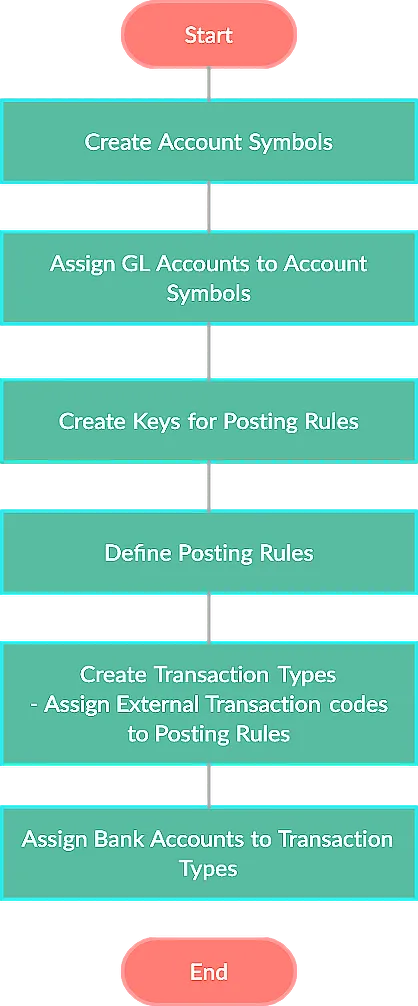
SAP EBSSajiv FrancisJune 2018Table of ContentsElectronic Banking Statement (EBS) Settings ................................ ............................... 3EBS Process ................................ ................................ ................................ ................ 3Configuration Steps ................................ ................................ ................................ .... 4Define House Banks (FI12) ................................ ................................ .......................... 4Make Global Settings for EBS ................................ ................................ ..................... 4Overview of Account Determination ................................ ................................ ........... 5EBS UPLOAD AS PER BAI/BAI2 FORMAT ................................ ................................ ...... 6Execution of the Electronic Bank Statement ................................ ................................ 8Electronic Banking Statement (EBS) Settings• EBS is an electronic document sent by the Bank giving the details of the transactions doneby the Customer / Account Holder.• The electronic document can be remitted by the Bank in the following formats – SWIFT,Multicash, BAI etc.• This Statement is used i n SAP to do an automatic reconciliation of the bank relatedtransactions.• The statement is uploaded in SAP and it clears the various bank clearing accounts such asthe check out, check-in account to the Main Bank Account.EBS ProcessStart Create Account Symbols Assign GL accounts to Account Symbols Create Keys for posting rulesDefine Posting Rules Create Transaction Types o Assign External transaction codes to posting rules Assign Bank Accounts to Transaction TypesEndConfiguration Steps• The component Bank Accounting in R/3 System is used to handle accounting transactions thatare processed with the clients’ Banks.• R/3 System provides the settings for EBS.• It includes management of Bank master data, the creation and processing of incoming andoutgoing payments.• All country specific characteriztics such as the specifications for manual and electronicpayment procedures, payment forms or data media can be freely defined.Define House Banks (FI12)Path – SPRO> Financial Accounting > Bank Accounting > Bank Accounts > Define HouseBanks• Create GL account (Tcode FS00) for the Main Bank and sub GL accounts such asChecks received, checks paid, wire transfer etc. All the sub GL accounts aremaintained on an Open Item basis. Maintain the GL Code and the Account Id.(Account ID together with the ID for the House Bank uniquely defines a BankAccount).• Assign the Main Bank GL Account to the House Bank.Make Global Settings for EBSPath – SPRO> Financial Accounting > Bank Accounting > Business Transactions >Payment Transactions > Electronic Bank Statement > Make Global Settings forElectronic Bank Statement• Create Account Symbols• Assign GL accounts to Account Symbols• Create Keys for posting rules• Posting Specifications - Define Posting Rules (2 posting rules: GL (BankAccounting) posting and Sub ledger posting.o For posting rules we define the posting area and assign document type,posting type and account symbols.o As the GL accounts are assigned to account symbols, the posting ruleswill pick the data from the account symbols.o Posting specification consists of one or two posting records (debit/credit)o One posting rule can have two posting areas• Create Transaction Typeso Assign External transaction codes to posting rules• Assign Bank Accounts to Transaction TypesNote – Account symbols are not defined for sub ledger accounts. Since these are determinedeither by the standard interpretation algorithm for finding clearing information or byfunctional enhancements.Overview of Account DeterminationSNO A/c Symbol Description GL A/C Before upldof EBSAfter upldEBS1 BANK Bank Account +++++++ - -2 GEBUHREN Bank ChargesAccount479000 DR 2CR 13 SCHECKINGANG Incoming Checks ++++++8 DR DR 1CR 34 SCHECKAUSGANG Outgoing Checks ++++++1 CR DR 4CR 15 OUTCHQCLR Outgoing Checksclear++++++1 CR DR 5CR 16 INCHQCLR Incoming checksclear++++++8 DR DR 1CR 6Search sequence- Bank key and bank account identifies Transaction type- Transaction type will store details of external transaction codes and posting rule assignedto the transaction codes.A Generic view of Accounting Entries for the following transactionsInvoicePurchaseRaw Material Consumption A/c DRVendor A/c CRSaleCustomer A/c DRSales A/c CRAfter uploading of EBS FileWhen Checks issued outVendor A/c DRChecks payable Cr(Scenario: When check are directlydeposited by the customer in the Bank).When Checks Received InIncoming Checks DRCustomer A/c CRChecks payable DRMain Bank A/c CRMain Bank A/c DRIncoming Checks CROther Relevant EntriesBank ChargesBank Charges A/c DRMain Bank A/c CREBS UPLOAD AS PER BAI/BAI2 FORMATCompany Code – KIM1Chart of Accounts – INTCreate Account Symbols and assign accounts to Account SymbolsCreated Account Symbols Description GL Account assigned toAccount SymbolsBank Bank Account +++++++GEBUHREN Charges 479000SCHECKEINGANG (Customercheck receipts & otherreceipts)Incoming Checksaccount++++++8SCHECKAUSGANG (Vendorpayments & otherpayments)Outgoing checksaccount++++++1Create keys for posting rulesDefine Posting RuleOne posting rule can be assigned to two posting areas – GL posting and Sub ledger postingCreate Transaction TypeCreated Transaction Type KIM1–BAI.Assigned external transaction types and assigned posting rulesThe external transaction types used for the KIM-BAI transaction type areExt Trans+/- Posting Rule Description InterpretationAlgorithm175 + 0023 IncomingchecksDocumentnumber search475 - 0025 OutgoingChecksDocumentnumber search495 - 0009 AccountChargesNo interpretation498 - 107 Checks paid Documentnumber search186 + 007 ChecksreceivedDocumentnumber searchNote – External transactions are known as Business Transaction CodesAssigned Bank Accounts to Transaction TypesAssigned KIM-BAI transaction type to the Bank account of KIM1Execution of the Electronic Bank Statement- Posted invoices for the customers and vendors and maintained as open items. Also createdopen items for other payments and other receipts. Created a file in BAI format with customer,vendor, other payments, other receipts, and bank charges transactionsOpen Item Total Any other infoCustomer138139222 open items percustomerVendor300080300081222 open items pervendorOther payments2 Open itemsalready exist;clearing the openitems.Other receipts2 Open itemsalready exist;clearing the openitems.Bank Charges 2 (Not an openitem)Total number of transactions 14Bank statement upload – FF.5The following accounts are cleared after the upload of EBS- the customer open items are cleared and a clearing document is generated as above.- the vendor open items are cleared and a clearing document is generated as above.- the existing open items in the GL accounts (checks payable(113101) and checksreceivable (113108)) are cleared at the time of Bank statement upload.Check for any transactions that are unposted.FEBA_BANK_STATEMENT_Reprocess for any unposted transactionsTo display all the bank statements uploaded - FF_6.This screen shows thatthe statement # 9 iscleared and is shown ingreenBAI2 FILE FORMAT:
Section titled “BAI2 FILE FORMAT:”APP PAYMENT PROGRAM:
Section titled “APP PAYMENT PROGRAM:”Show extracted text
SAP – APPFBZP, House Bank, DMEE - Configuration StepsSajiv FrancisDecember 2019Table of ContentsBUSINESS PROCESS FLOW – APP: ................................ ................................ ................................ ........3PAYMENT METHODS: ................................ ................................ ................................ .............................. 3APP BUSINESS PROCESS FLOW: ................................ ................................ ................................ .................31. CREATION OF VENDOR INVOICE – F-43/MIRO (IMMEDIATE PAYMENT TERMS) .................................................. 32. CHECK THE VENDOR LINE ITEM BALANCE – FBL1N .......................................................................................... 43. APP EXECUTION – DME PAYMENT METHOD: F110 ....................................................................................... 44. SELECT PAYMENT PROPOSAL – START IMMEDIATELY ........................................................................................ 55. DME ADMINISTRATION WORKBENCH: TCODE - FDTA .................................................................................... 66. OUTPUT: ................................................................................................................................................. 67. END TO END APP – DMEE PROCESS FLOW STEPS ........................................................................................... 6PAYMENT PROCESS CONFIGURATION: (STEPS TO BE UNDERTAKEN) ................................ .................... 8DEFINE BANK KEY – FI01.................................................................................................................................... 8DEFINE THE HOUSE BANK – FI12 ......................................................................................................................... 9SET UP ALL COMPANY CODE –FBZP ................................................................................................................... 10SET UP PAYING COMPANY CODE –FBZP ............................................................................................................. 10SET UP PAYMENT METHOD PER COUNTRY –FBZP ............................................................................................... 11SET UP PAYMENT METHOD PER COMPANY CODE –FBZP ....................................................................................... 13SET UP BANK DETERMINATION –FBZP ............................................................................................................... 15DEFINE VALUE DATE RULES – FBZP (SELECT BANK DETERMINATION & CHOOSE COMPANY CODE) .............................. 17DME FILE CONFIGURATION STEPS:................................ ................................ ................................ .... 191. SETUP PAYMENT MEDIUM FORMAT – OBPM1................................ ................................ .................... 192. GO TO TRANSACTION DMEE1 – DMEE TREE CONFIGURATION ................................ ................................ 193. ASSIGN PAYMENT MEDIUM FORMAT IN STEP 3 CONFIGURATION – PAYMENT METHODS IN COUNTRY ....... 204. CREATE AND ASSIGN VARIANT TO BANK: OBPM4 ................................ ................................ ................. 21DMEE TREE CONFIGURATION STEPS: ................................ ................................ ................................ 23SETTINGS FOR GENERATING DME FILE IN PAYMENT RUN: ................................ ................................ . 24SAP TRANSPORT CUSTOMIZATIONS: ................................ ................................ ................................ 25TRANSPORT BETWEEN CLIENTS IN THE SAME SYSTEM: ................................ ................................ .................... 25TRANSPORT BETWEEN CLIENT IN DIFFERENT SYSTEM:................................ ................................ ..................... 26Business Process Flow – APP:Payment Methods:- APP Check (Company will print check and send it to the vendor)- APP IDOC (Bank will print check and send it to vendors) Outbound IDOC transferred tobank.- APP DME (After executing APP-DME, output file will be submitted to BANK, BANK willtransfer amount to vendor) (Flat file, XML file will be uploaded to bank server or sent tothe bank, this file is designed as per the bank requirement).APP Business process flow:1. Creation of vendor invoice – F-43/MIRO (Immediate payment terms)2. Check the vendor line item balance – FBL1N3. APP Execution – DME Payment Method: F110 Parameters Execute Proposal Execute Payment Run Printout4. Select Payment proposal – start immediatelyClick on display proposal:5. DME Administration Workbench: Tcode - FDTA6. OUTPUT:1. Export the DME output file2. Submit to Bank (Upload to bank server or send it to bank)7. End to end APP – DMEE process flow steps-----------Automatic Payment Configuration---------------1. All Company codes ---- Add your company code here2. Paying Company codes -- Add your company Code here3. Payment Methods in Country --- Here we will do the config for Payment Methods likeCheque, IDOC, DME etc.4. Payment Methods in Company Code -- Add the Payment Methods Configured in 3rd step5. Create Bank GL Account for - Outgoing Payments ---FS006. Create House Banks-----FI12 OR FBZP.7. Create Bank Accounts (ID) --------FI12 OR FBZP 8. Bank Determination---------------FBZP --Ranking Order --Bank Accounts --Available Amounts 9. Create Payment Medium Formats --- OBPM1 10. Assign Payment Medium format in step 3 of configuration. 11. Create and Assign Variant to Bank--- OBPM4--------- DONE 12. Create DMEE Tree------------------DMEE---------------Master Data Updating--------------------- 1. Update Vendor Payments Terms------------Unit Testing------------------- 1. Post Vendor Invoices -- F-43 2. Execute APP F110 3. Analyze ResultsPayment Process Configuration: (Steps to be undertaken)Define Bank Key – FI01Define the House Bank – FI12Enter in the details for House Bank – Tabs for Data, Communications, Address, Control Data, EDIpartner profiles, Data Medium Exchange (General data), Charges Account and Running mode.Set up All company code –FBZPSet Up Paying Company code –FBZPSet Up Payment Method per Country –FBZP- Create payment method format – OBPM1- Assign variant to company code:Set up payment Method per company code –FBZPSet up Bank Determination –FBZP- Create Bank GL Account for Outgoing Payments – FS00For e.g. 113428 Citibank- Create House Banks FI12Create House BankCreate Bank AccountDefine Value Date rules – FBZP (Select Bank determination & choose company code)Select Ranking Order – New EntriesHighlight & Double click Bank Accounts: NEW ENTRIESHighlight & Double click Bank Accounts (Enhanced): NEW ENTRIESHighlight & Double click Available Amounts: NEW ENTRIESUpdate new Payment Method in Vendor Master – XK02DME File Configuration steps:1. Setup Payment Medium Format – OBPM1Select NEW ENTRIES and Use forward slash e.g. /ZDME_WG01 before the format name.2. Go to transaction DMEE1 – DMEE Tree Configuration3. Assign Payment Medium Format in Step 3 configuration – PAYMENT METHODS INCOUNTRY4. Create and assign variant to Bank: OBPM4Select your payment medium format e.g. /ZDME_WG01Enter the variant description & SAVE – Hit on the back button and save the variant againSAVE THE VARIANT Chat with Sajiv